Best Screen Recorder for Mac with Auto Zoom in 2026
Macapp Supply · September 23, 2026
Discover top Mac screen recorders with auto zoom features for professional-grade video captures in 2026.
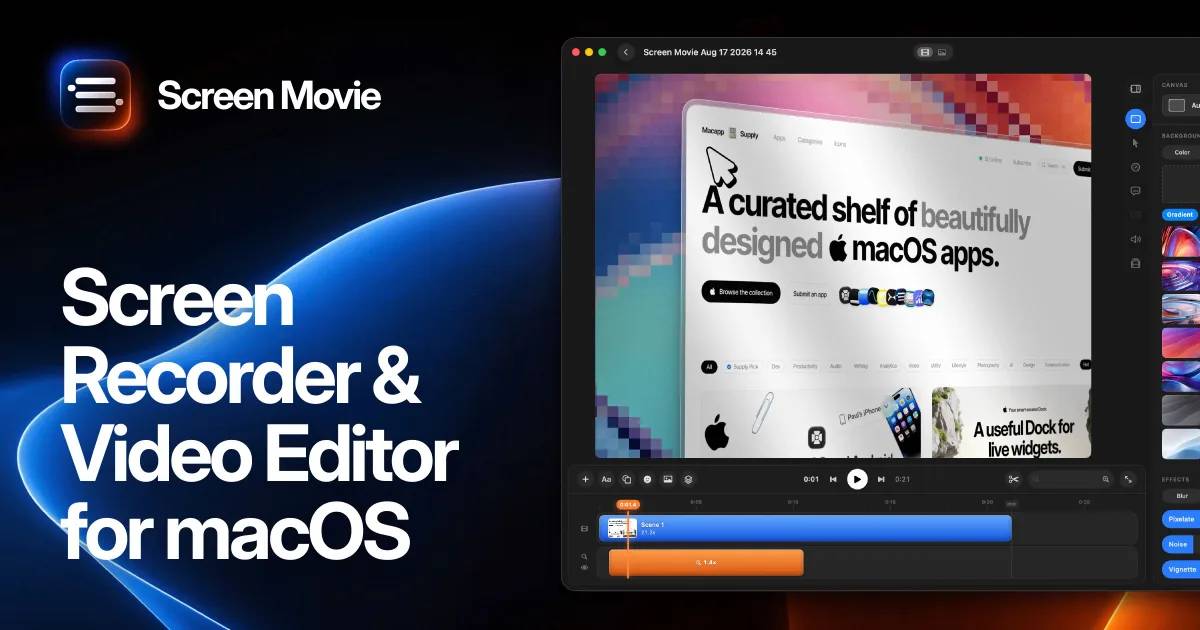
Screen recording on Mac has evolved significantly, providing users with tools that are both powerful and easy to use. In 2026, the demand for screen recorders with auto zoom features has increased, as they enhance the clarity and focus of recordings. Whether you're creating tutorials, capturing gameplay, or making presentations, these apps are designed to offer high-quality results with minimal effort.
In this article, we will explore some of the best screen recording applications for Mac that feature auto zoom capabilities. These tools are perfect for professionals and enthusiasts alike, ensuring that every detail is captured precisely.
1. Screen Movie — Comprehensive Editing and Recording
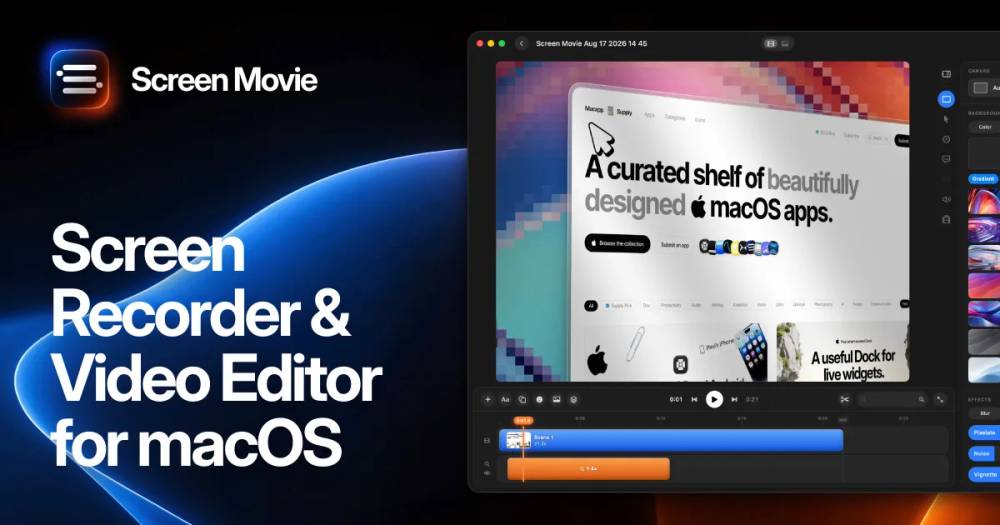

Screen Movie is a versatile screen recording and video editing tool designed for macOS. It allows users to record their screens, capture screenshots, and edit videos with ease. Its standout feature is the ability to animate text, images, and captions, making it ideal for creating polished product videos. Screen Movie is perfect for content creators who need a reliable and feature-rich tool for screen recording and video editing. As a paid app, it offers extensive features that justify the investment for professional use.
2. Shotbase — Modern Capture Workspace

Shotbase provides a modern workspace for screen capture on macOS. It streamlines the process of capturing, editing, organizing, and sharing screenshots and recordings. With its seamless workflow, Shotbase is suitable for users who need a quick and efficient way to manage their screen captures. Available as a subscription-based service, it ensures users always have access to the latest features and updates.
3. Retinly — Cinematic Screen Recordings
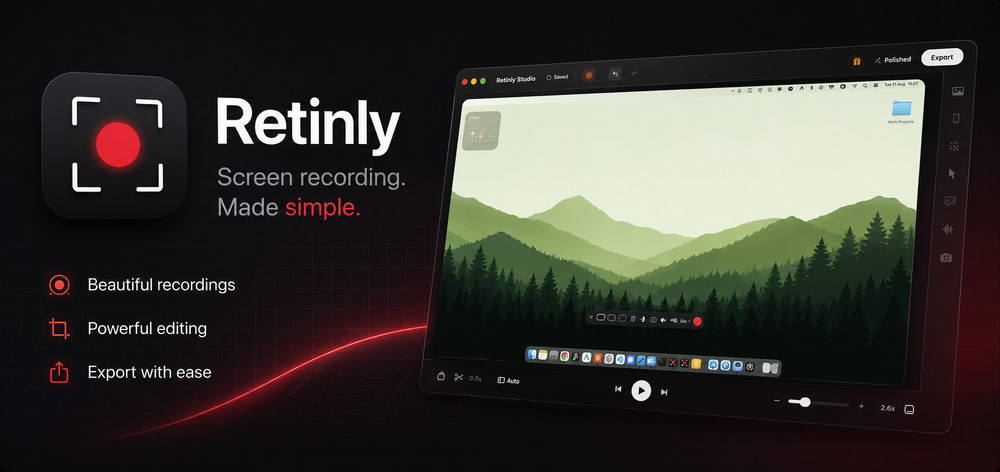

Retinly specializes in transforming ordinary screen recordings into cinematic presentations. It offers features like auto-zoom, smooth cursor movements, and presenter framing, making it an excellent choice for professionals who want their recordings to look polished without extensive editing. As a paid app, Retinly provides a high level of functionality and quality, catering to users who demand the best in screen recording technology.
4. Screen Charm — Polished Video Recordings
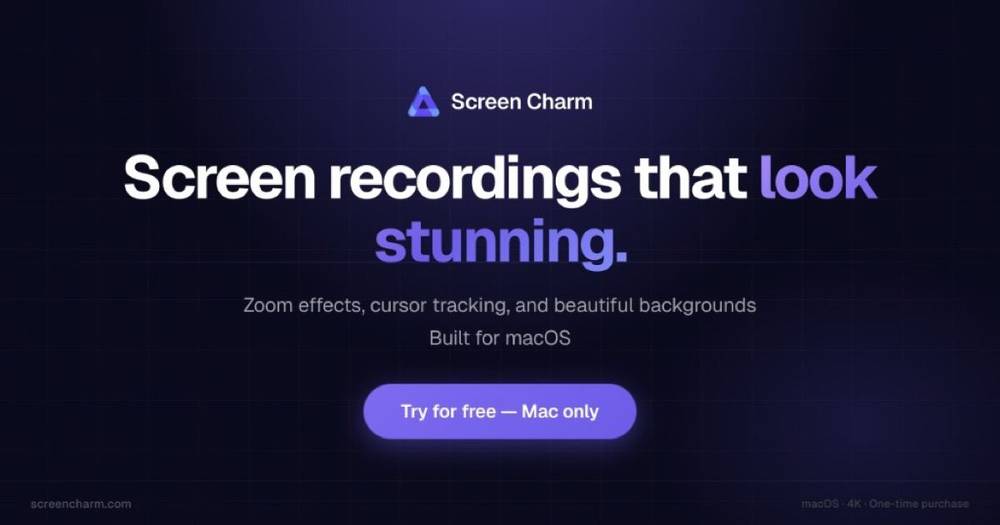

Screen Charm is designed to create polished videos effortlessly. Its user-friendly interface and powerful recording capabilities make it a favorite among users who need to produce professional-looking content quickly. With features like auto zoom, Screen Charm is well-suited for educators, marketers, and anyone involved in producing high-quality screen recordings. Pricing is structured to accommodate various user needs, making it an accessible option for many.
How to Choose the Right Screen Recorder
When selecting a screen recorder for your Mac, consider the specific features you need, such as auto zoom, editing capabilities, and ease of use. Evaluate the pricing models to ensure they fit your budget, and consider whether you prefer a one-time purchase or a subscription-based service.
Tips for Using Screen Recorders
- Plan Your Recording: Before starting, plan what you want to capture and outline key points to cover.
- Test Settings: Experiment with different settings to find the best quality and file size balance.
- Edit Thoughtfully: Use editing tools to enhance clarity and engagement without overcomplicating the content.
Final thoughts
Choosing the right screen recorder for your Mac with auto zoom can significantly enhance your video creation process. By focusing on features, budget, and user needs, you can find a tool that suits your requirements perfectly. Whether you're a professional or a hobbyist, these apps offer the functionality and ease of use needed to create standout content.